


Node.js + npm + Github + Vercel + Obsidian
参考资料
建站 - DigVPS - 专注VPS测评,总有一款服务器适合您!
AI辅助:Gemini pro 3问答、Claude Haiku 4.5(Vscode)
1. 项目代码
1.1 环境
-
安装Node.js和npm
-
创建项目
npm create fuwari@latest-
配置
编辑src/config.ts文件进行博客配置。 -
启动本地开发服务器
npm dev- 创建新文章
使用命令npm new-post <filename>或者直接在src/content/posts/目录中创建文件。
1.2 部署
-
创建Github仓库
-
项目根目录下打开Git bash
# 初始化git init
# 添加所有文件: 这个命令会包含所有文件,包括隐藏文件,但会排除 `.gitignore` 中指定的文件(比如 `node_modules`)。git add .
# 提交本地更改git commit -m "Initial commit of Astro site"
# 连接并推送git branch -M maingit remote add origin [你的GitHub仓库URL]git push -u origin main- Vercel上一键部署
Github账号登录
import:Github的Astro项目仓库
Add New:import添加的仓库
配置项目:- Framework Preset (框架预设):Vercel 通常会自动检测并显示为 Astro。如果是,就不用动。
- 如果它没识别出来,手动下拉选择 Astro。
- Root Directory (根目录):如果你把代码直接放在仓库最外层,这里不用改。
- Build and Output Settings:
- Build Command: 默认
astro build(不用改) - Output Directory: 默认
dist(不用改)
- Build Command: 默认
- Environment Variables: 如果你的项目没有用到特殊的密钥(API Key),这里留空。
Deploy部署
- Framework Preset (框架预设):Vercel 通常会自动检测并显示为 Astro。如果是,就不用动。
2. Obsidian文章上传
同步处理脚本sync_and_deploy.ps1(放在项目根目录即可)
2.1 文章格式
格式要求:需要前言
---title: Draft Examplepublished: 2022-07-01tags: [Markdown, Blogging, Demo]category: Examplesdraft: false---含封面图片
---title: Simple Guides for Fuwaripublished: 2024-04-01description: "How to use this blog template."image: "./cover.jpeg"tags: ["Fuwari", "Blogging", "Customization"]category: Guidesdraft: false---注意:draft
则文章不会上传网页显示
- Obsidian里专门设置一个文件夹,比如PostsForAstro,专门放要post的文章
- 同时设置Template文件夹,放置模板.md,比如Astro_Post_Template.md
- 下载插件:Templater
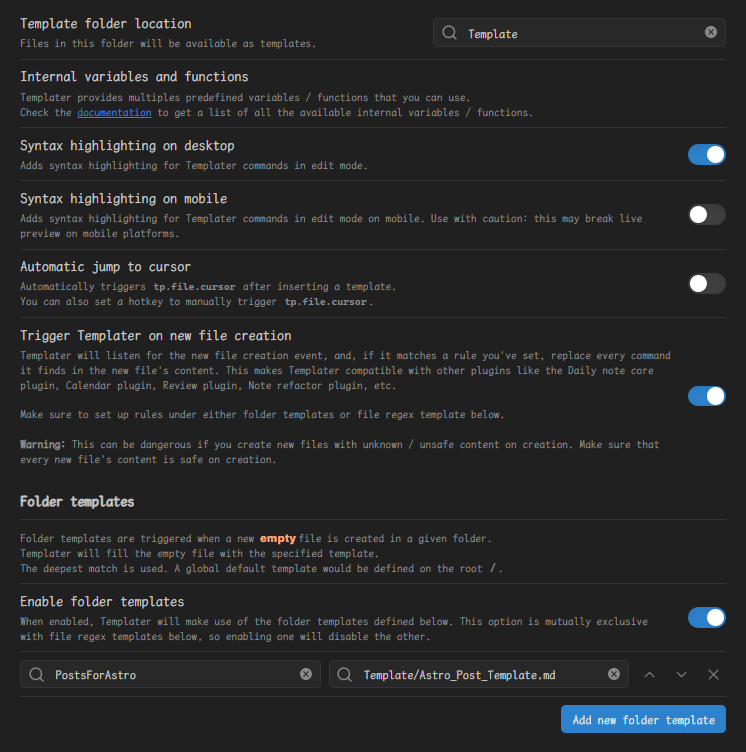
- 实现在PostsForAstro中创建.md就默认以模板形式创建
2.2 上传
2.2.0 格式修改
下载插件:Link Convertor、Consistent Attachments and Links
Ctrl+P来执行功能
Link Convertor:
- 当前文件/所有文件Links to Markdown/Wiki
Consistent Attachments and Links:
- 当前文件/所有文件Links to Markdown/Wiki
- 当前文件/所有文件embed paths to relative(图片格式属于embed paths)
- 当前文件/所有文件link paths to relative(链接格式属于link paths)
2.2.1 图片格式:markdown格式+相对路径
若Obsidian里图片格式为markdown格式+相对路径
其中:
- markdown格式
![](),比如 - 相对路径是/attachments,比如
转为 - Obsidian的文章:D:\AppDownload\Vaults\Notes\NewVault\PostsForAstro
- Astro项目的文章:D:\FileDownload\Projects\Echo_Kang_Blog\src\content\posts
- Astro项目的Attachments:D:\FileDownload\Projects\Echo_Kang_Blog\public\attachments
- 脚本实现:复制Obsidian文章到Astro项目文章目录处,复制Obsidian的attachments到Astro项目的attachments,Git同步上传
sync_and_deploy.ps1脚本如下:
# Astro-Obsidian Sync and Deploy Script# Get script directory for reference (though paths are absolute)$ScriptDir = Split-Path -Parent $MyInvocation.MyCommand.Path
$ObsidianVaultRoot = "D:\AppDownload\Vaults\Notes\NewVault"$AstroProjectRoot = "D:\FileDownload\Projects\Echo_Kang_Blog"$ObsidianArticleSrc = Join-Path $ObsidianVaultRoot "PostsForAstro"$ObsidianAttachmentSrc = Join-Path $ObsidianVaultRoot "attachments"$AstroArticleDest = Join-Path $AstroProjectRoot "src\content\posts"$AstroAttachmentDest = Join-Path $AstroProjectRoot "public\attachments"
Write-Host "`nVerifying paths..." -ForegroundColor Cyanforeach ($p in @($ObsidianVaultRoot, $ObsidianArticleSrc, $ObsidianAttachmentSrc, $AstroProjectRoot)) { if (Test-Path $p) { Write-Host "OK - $p" -ForegroundColor Green } else { Write-Host "ERROR - Not found: $p" -ForegroundColor Red exit 1 }}
Set-Location $AstroProjectRootif (-not (Test-Path $AstroArticleDest)) { New-Item -ItemType Directory -Force -Path $AstroArticleDest | Out-Null }if (-not (Test-Path $AstroAttachmentDest)) { New-Item -ItemType Directory -Force -Path $AstroAttachmentDest | Out-Null }
Write-Host "`nSyncing articles..." -ForegroundColor Green# Using /MIR to mirror (delete files not in source) and force sync all filesrobocopy $ObsidianArticleSrc $AstroArticleDest /E /DCOPY:DAT /COPY:DAT /R:3 /W:10 /NFL /NDL /NP | Out-Nullif ($LASTEXITCODE -lt 8) { Write-Host "OK - Articles synced" -ForegroundColor Cyan } else { Write-Host "ERROR - Robocopy failed: $LASTEXITCODE" -ForegroundColor Red; Write-Host "Trying alternative sync method..." -ForegroundColor Yellow; Copy-Item "$ObsidianArticleSrc\*" $AstroArticleDest -Recurse -Force }
Write-Host "`nSyncing attachments..." -ForegroundColor Green# Using /MIR to mirror (delete files not in source) and force sync all filesrobocopy $ObsidianAttachmentSrc $AstroAttachmentDest /E /DCOPY:DAT /COPY:DAT /R:3 /W:10 /NFL /NDL /NP | Out-Nullif ($LASTEXITCODE -lt 8) { Write-Host "OK - Attachments synced" -ForegroundColor Cyan } else { Write-Host "ERROR - Robocopy failed: $LASTEXITCODE" -ForegroundColor Red; Write-Host "Trying alternative sync method..." -ForegroundColor Yellow; Copy-Item "$ObsidianAttachmentSrc\*" $AstroAttachmentDest -Recurse -Force }
Write-Host "`nFixing image paths..." -ForegroundColor Yellow
# Rename attachment files with spaces to use underscoresWrite-Host " Renaming files with spaces..."$attachmentFiles = Get-ChildItem -Path $AstroAttachmentDest -File | Where-Object { $_.Name -like "* *" }$renameCount = 0foreach ($file in $attachmentFiles) { $newName = $file.Name -replace ' ', '_' $newPath = Join-Path $AstroAttachmentDest $newName Move-Item -Path $file.FullName -Destination $newPath -Force $renameCount++}if ($renameCount -gt 0) { Write-Host " Renamed $renameCount files" }
# Fix markdown image references (skip frontmatter for markdown syntax, but fix URLs)$mdFiles = Get-ChildItem -Path $AstroArticleDest -Filter "*.md" -Recurse$fixCount = 0$wikiLinkCount = 0foreach ($file in $mdFiles) { $content = Get-Content $file.FullName -Encoding UTF8 $newContent = @() $fileModified = $false $inFrontmatter = $false $frontmatterCount = 0
foreach ($line in $content) { $newLine = $line
# Track frontmatter (between --- markers) if ($line -match '^---\s*$') { $frontmatterCount++ if ($frontmatterCount -eq 2) { $inFrontmatter = $false } elseif ($frontmatterCount -eq 1) { $inFrontmatter = $true } }
# Replace URL-encoded spaces in ALL lines (including frontmatter) if ($newLine -match '_') { $oldLine = $newLine $newLine = $newLine -replace '_', '_' if ($oldLine -ne $newLine) { $fixCount++ $fileModified = $true } }
# Only process image syntax outside frontmatter if (-not $inFrontmatter) { # Step 1: Convert Obsidian WikiLink format  to Markdown format  if ($newLine -match '!\[\[') { $oldLine = $newLine $newLine = $newLine -replace '!\[\[([^\]]+)\]\]', '' if ($oldLine -ne $newLine) { $wikiLinkCount++ $fileModified = $true } }
# Step 2: Replace relative paths with absolute paths if ($newLine -match 'attachments') { $oldLine = $newLine $newLine = $newLine -replace '\.\./attachments/', '/attachments/' $newLine = $newLine -replace '\./attachments/', '/attachments/' if ($oldLine -ne $newLine) { $fixCount++ $fileModified = $true } }
# Step 3: Replace remaining spaces in attachment file names with underscores if ($newLine -match '/attachments/') { $oldLine = $newLine # Replace ALL spaces with underscores in the attachment path section while ($newLine -match '/attachments/[^)]*\s') { $newLine = $newLine -replace '(attachments/[^)]*?)\s', '$1_' } if ($oldLine -ne $newLine) { $fixCount++ $fileModified = $true } } }
$newContent += $newLine }
# Write file only if modified if ($fileModified) { $newContent | Set-Content $file.FullName -Encoding UTF8 }}Write-Host "OK - Converted $wikiLinkCount WikiLink, fixed $fixCount path issues"
Write-Host "`nGit deployment..." -ForegroundColor Magenta$status = git status --porcelainif ($status -eq "") { Write-Host "INFO - Repository is clean" -ForegroundColor DarkYellow} else { Write-Host "1. Adding local changes..." git add .
Write-Host "2. Committing local changes..." git commit -m "Obsidian Auto Sync & Path Fix: $(Get-Date -Format 'yyyy-MM-dd HH:mm:ss')"
Write-Host "3. Pulling from remote (rebase)..." git pull origin main --rebase if ($LASTEXITCODE -ne 0) { Write-Host "`nWARNING - Pull/rebase failed (may have conflicts)" -ForegroundColor Yellow Write-Host "To abort rebase: git rebase --abort" -ForegroundColor Yellow Write-Host "To continue after fixing: git rebase --continue" -ForegroundColor Yellow exit 1 }
Write-Host "4. Pushing to remote..." git push origin main if ($LASTEXITCODE -eq 0) { Write-Host "`nSUCCESS - Deployment complete" -ForegroundColor Green
Write-Host "`n5. Updating local working directory..." git reset --hard HEAD Write-Host "Local working directory synced with latest commit" -ForegroundColor Cyan } else { Write-Host "`nERROR - Push failed" -ForegroundColor Red exit 1 }}Write-Host "`nDone."log:
1.修改image含_于attachments中名称不同的问题导致的图片显示失败问题
Obsidian 导出的图片文件名中的空格被 URL 编码为
_,但实际文件名使用的是下划线_。网页无法找到这些文件,所以无法显示封面。
现在脚本会在所有行(包括 frontmatter)中自动替换_为_。
2.修复内容:运行脚本,本地工作区没有更新(本地项目代码)
| 问题 | 原因 | 修复方案 |
|---|---|---|
| ❌ Robocopy 报错 16 | /Y 不是有效的 robocopy 参数 | 改用 /DCOPY:DAT /COPY:DAT /R:3 /W:10 |
| ❌ 无备选方案 | robocopy 失败时直接报错 | 添加 Copy-Item 作为备选同步方法 |
| ❌ 本地不更新 | 推送后没有更新工作区 | 添加 git reset --hard HEAD |
现在脚本应该能正常工作了。以后运行 sync_and_deploy 时,会:
- 正确同步 Obsidian 文件
- 修复图片路径
- 推送到 GitHub
- 自动更新本地工作区(这样 VS Code 就能立即看到最新内容)
脚本分析
这是一个 Obsidian 笔记库 → Astro 博客的自动同步和部署脚本,流程分为五个主要阶段:
第一阶段:路径验证和初始化
- 定义了源和目标路径:
- 源:Obsidian 笔记库中的
PostsForAstro文件夹(文章)和attachments文件夹(附件) - 目标:Astro 项目的 posts(文章)和 attachments(附件)
- 源:Obsidian 笔记库中的
- 检查所有路径是否存在,如果缺失会报错退出
- 自动创建目标目录(如果不存在)
第二阶段:同步文件(使用 Robocopy + 备选方案)
改进点:从原来的 /IS /IT(跳过相同时间戳文件)改为强制同步模式
robocopy $ObsidianArticleSrc $AstroArticleDest /E /DCOPY:DAT /COPY:DAT /R:3 /W:10 /NFL /NDL /NP参数说明:
/E= 复制所有子目录(包括空目录)/DCOPY:DAT= 复制目录时间戳、属性、访问控制列表/COPY:DAT= 复制文件数据、属性、时间戳/R:3= 失败文件重试 3 次/W:10= 重试间隔 10 秒/NFL /NDL /NP= 不记录文件名、目录名和进度
容错机制:robocopy 失败时自动回退到 Copy-Item 进行强制覆盖同步
if ($LASTEXITCODE -lt 8) { Write-Host "OK - Articles synced"} else { Write-Host "ERROR - Robocopy failed" Copy-Item "$ObsidianArticleSrc\*" $AstroArticleDest -Recurse -Force # 备选方案}第三阶段:修复图片路径和文件名(关键)
1. 重命名附件文件
- 将附件文件名中的空格替换为下划线(URL 编码 _ 会导致路径失效)
2. 处理 Markdown 文件(逐行处理,跳过 YAML Frontmatter)
| 步骤 | 转换内容 | 示例 |
|---|---|---|
| Step 1 | Obsidian WikiLink → Markdown |  →  |
| Step 2 | 相对路径 → 绝对路径 | ../attachments/img.png → /attachments/img.png |
| Step 3 | 文件名空格处理 | /attachments/my image.png → /attachments/my_image.png |
| URL 编码 | _ 编码替换 | _ → _(所有行,包括 Frontmatter) |
第四阶段:Git 同步部署(使用变基策略)
完整流程:
1. git add . # 暂存所有本地修改
2. git commit -m "..." # 提交本地更改 └─ 提交信息包含时间戳: "Obsidian Auto Sync & Path Fix: 2025-11-30 09:28:31"
3. git pull origin main --rebase # ⭐ 拉取远程并变基 ├─ 如果有冲突:显示警告,允许手动解决 │ - git rebase --abort │ - git rebase --continue └─ 如果成功:继续到第 4 步
4. git push origin main # 推送到远程 └─ 上传本地提交到 GitHub变基的好处:
- 保持 Git 历史线性,避免分叉的合并提交
- 清晰的提交链路,便于查看历史
第五阶段:本地工作区同步(新增)
这是最新改进版本的关键创新:
5. git reset --hard HEAD # ⭐ 强制本地与最新提交同步 └─ 确保本地文件系统与 GitHub 完全一致为什么需要这一步:
- 脚本推送到 GitHub 后,本地工作区有时不会自动更新
- 导致 VS Code 编辑器显示的仍是旧文件内容
git reset --hard HEAD强制刷新本地文件到最新提交版本
流程图
┌─────────────────────────────────────────────────────┐│ 第一阶段:路径验证 ││ • 检查 Obsidian 源目录 ││ • 检查 Astro 目标目录 │└────────────────┬────────────────────────────────────┘ │┌────────────────▼────────────────────────────────────┐│ 第二阶段:同步文件 ││ • Robocopy 强制同步(/DCOPY /COPY) ││ • 失败时自动回退 Copy-Item │└────────────────┬────────────────────────────────────┘ │┌────────────────▼────────────────────────────────────┐│ 第三阶段:修复路径和文件名 ││ • 重命名:空格 → 下划线 ││ • WikiLink → Markdown ││ • 相对路径 → 绝对路径 ││ • _ → _ │└────────────────┬────────────────────────────────────┘ │┌────────────────▼────────────────────────────────────┐│ 第四阶段:Git 部署 ││ • git add . ││ • git commit -m "..." ││ • git pull --rebase ││ • git push │└────────────────┬────────────────────────────────────┘ │┌────────────────▼────────────────────────────────────┐│ 第五阶段:本地同步(新增) ││ • git reset --hard HEAD ││ • 确保本地文件与 GitHub 完全一致 ││ • VS Code 显示最新内容 │└─────────────────────────────────────────────────────┘关键改进总结
| 改进项 | 旧版本 | 新版本 | 效果 |
|---|---|---|---|
| Robocopy 参数 | /IS /IT(跳过) | /DCOPY:DAT /COPY:DAT(强制) | 确保所有文件都被同步 |
| 同步失败处理 | 直接报错 | 回退 Copy-Item | 提高容错能力 |
| 本地更新 | 无 | git reset --hard HEAD | 本地与远程保持一致 |
| 用户体验 | VS Code 显示旧内容 | 自动刷新到最新内容 | 解决信息不一致问题 |
为什么用变基(—rebase)?
- 普通的 git pull(merge 方式)会创建合并提交,历史记录分叉
- 变基会重放本地提交在远程最新提交上方,保持历史线性,更清晰
冲突处理:如果变基失败,脚本会:
- 提示用户手动解决冲突
- 然后
git add .暂存所有变更(包括冲突解决,从Unmerged paths区域移除),可以git status - 给出恢复命令:
git rebase --abort或git rebase --continue
2.2.2 图片格式:wiki+相对路径
若Obsidian里图片格式为wiki+相对路径
其中:
- wiki格式:“
- 相对路径是/attachments,比如
转为 - Obsidian的文章:D:\AppDownload\Vaults\Notes\NewVault\PostsForAstro
- Astro项目的文章:D:\FileDownload\Projects\Echo_Kang_Blog\src\content\posts
- Astro项目的Attachments:D:\FileDownload\Projects\Echo_Kang_Blog\public\attachments
- 脚本实现:复制Obsidian文章到Astro项目文章目录处,复制Obsidian的attachments到Astro项目的attachments,将markdown中图片格式修改为markdown格式并转为链接(无空格),Git同步上传
sync_and_deploy.ps1脚本如下:
# Astro-Obsidian Sync and Deploy Script$ObsidianVaultRoot = "D:\AppDownload\Vaults\Notes\NewVault"$AstroProjectRoot = "D:\FileDownload\Projects\Echo_Kang_Blog"$ObsidianArticleSrc = Join-Path $ObsidianVaultRoot "PostsForAstro"$ObsidianAttachmentSrc = Join-Path $ObsidianVaultRoot "attachments"$AstroArticleDest = Join-Path $AstroProjectRoot "src\content\posts"$AstroAttachmentDest = Join-Path $AstroProjectRoot "public\attachments"
Write-Host "`nVerifying paths..." -ForegroundColor Cyanforeach ($p in @($ObsidianVaultRoot, $ObsidianArticleSrc, $ObsidianAttachmentSrc, $AstroProjectRoot)) { if (Test-Path $p) { Write-Host "OK - $p" -ForegroundColor Green } else { Write-Host "ERROR - Not found: $p" -ForegroundColor Red exit 1 }}
Set-Location $AstroProjectRootif (-not (Test-Path $AstroArticleDest)) { New-Item -ItemType Directory -Force -Path $AstroArticleDest | Out-Null }if (-not (Test-Path $AstroAttachmentDest)) { New-Item -ItemType Directory -Force -Path $AstroAttachmentDest | Out-Null }
Write-Host "`nSyncing articles..." -ForegroundColor Greenrobocopy $ObsidianArticleSrc $AstroArticleDest /E /IS /IT /NFL /NDL /NP | Out-Nullif ($LASTEXITCODE -lt 8) { Write-Host "OK - Articles synced" -ForegroundColor Cyan } else { Write-Host "ERROR - Robocopy failed: $LASTEXITCODE" -ForegroundColor Red }
Write-Host "`nSyncing attachments..." -ForegroundColor Greenrobocopy $ObsidianAttachmentSrc $AstroAttachmentDest /E /IS /IT /NFL /NDL /NP | Out-Nullif ($LASTEXITCODE -lt 8) { Write-Host "OK - Attachments synced" -ForegroundColor Cyan } else { Write-Host "ERROR - Robocopy failed: $LASTEXITCODE" -ForegroundColor Red }
Write-Host "`nFixing image paths..." -ForegroundColor Yellow
# Rename attachment files with spaces to use underscoresWrite-Host " Renaming files with spaces..."$attachmentFiles = Get-ChildItem -Path $AstroAttachmentDest -File | Where-Object { $_.Name -like "* *" }$renameCount = 0foreach ($file in $attachmentFiles) { $newName = $file.Name -replace ' ', '_' $newPath = Join-Path $AstroAttachmentDest $newName Move-Item -Path $file.FullName -Destination $newPath -Force $renameCount++}if ($renameCount -gt 0) { Write-Host " Renamed $renameCount files" }
# Fix markdown image references$mdFiles = Get-ChildItem -Path $AstroArticleDest -Filter "*.md" -Recurse$fixCount = 0$wikiLinkCount = 0foreach ($file in $mdFiles) { $content = Get-Content $file.FullName -Encoding UTF8 $newContent = @() $fileModified = $false
foreach ($line in $content) { $newLine = $line
# Step 1: Convert Obsidian WikiLink format  to Markdown format  if ($newLine -match '!\[\[') { $oldLine = $newLine $newLine = $newLine -replace '!\[\[([^\]]+)\]\]', '' if ($oldLine -ne $newLine) { $wikiLinkCount++ $fileModified = $true } }
# Step 2: Replace relative paths with absolute paths if ($newLine -match 'attachments') { $oldLine = $newLine $newLine = $newLine -replace '\.\./attachments/', '/attachments/' $newLine = $newLine -replace '\./attachments/', '/attachments/' if ($oldLine -ne $newLine) { $fixCount++ $fileModified = $true } }
# Step 3: Replace spaces in attachment file names with underscores # This handles all spaces in attachment paths like "Pasted image_" -> "Pasted_image_" if ($newLine -match '/attachments/') { $oldLine = $newLine # Replace ALL spaces with underscores in the attachment path section while ($newLine -match '/attachments/[^)]*\s') { $newLine = $newLine -replace '(attachments/[^)]*?)\s', '$1_' } if ($oldLine -ne $newLine) { $fixCount++ $fileModified = $true } }
$newContent += $newLine }
# Write file only if modified if ($fileModified) { $newContent | Set-Content $file.FullName -Encoding UTF8 }}Write-Host "OK - Converted $wikiLinkCount WikiLink, fixed $fixCount path issues"
Write-Host "`nGit deployment..." -ForegroundColor Magenta$status = git status --porcelainif ($status -eq "") { Write-Host "INFO - Repository is clean" -ForegroundColor DarkYellow} else { Write-Host "1. Adding local changes..." git add .
Write-Host "2. Committing local changes..." git commit -m "Obsidian Auto Sync & Path Fix: $(Get-Date -Format 'yyyy-MM-dd HH:mm:ss')"
Write-Host "3. Pulling from remote (rebase)..." git pull origin main --rebase if ($LASTEXITCODE -ne 0) { Write-Host "`nWARNING - Pull/rebase failed (may have conflicts)" -ForegroundColor Yellow Write-Host "To abort rebase: git rebase --abort" -ForegroundColor Yellow Write-Host "To continue after fixing: git rebase --continue" -ForegroundColor Yellow exit 1 }
Write-Host "4. Pushing to remote..." git push origin main if ($LASTEXITCODE -eq 0) { Write-Host "`nSUCCESS - Deployment complete" -ForegroundColor Green } else { Write-Host "`nERROR - Push failed" -ForegroundColor Red exit 1 }}Write-Host "`nDone."2.3 运行脚本(常用)
因为路径全为绝对路径,所以脚本文件可以在任意目录下执行,但脚本文件本身需要指定路径。
项目根目录下运行:
powershell -ExecutionPolicy Bypass -File ".\sync_and_deploy.ps1"任意目录下运行:
powershell -ExecutionPolicy Bypass -File "D:\FileDownload\Projects\Echo_Kang_Blog\sync_and_deploy.ps1"为方便写完文章后运行
- 下载插件:Termianl
- 左菜单栏选择终端-选择图中2个均可

为了更方便地上传文章,我们可以简化脚本运行的命令
- 打开powershell
powershell输入
$PROFILEPowerShell 会立刻显示一个文件路径,这就是你的配置文件路径。(配置文件也是一个.ps1脚本文件)
示例路径:
C:\Users\YourUserName\Documents\PowerShell\Microsoft.PowerShell_profile.ps1(注意:路径中的YourUserName会是你的实际用户名)
- 打开配置文件
notepad $PROFILE- 添加简化命令(函数和别名)
# 定义一个函数,包含你完整的长命令function Invoke-BlogSync { powershell -ExecutionPolicy Bypass -File "D:\FileDownload\Projects\Echo_Kang_Blog\sync_and_deploy.ps1"}
# 为这个函数创建一个短别名Set-Alias -Name syncblog -Value Invoke-BlogSync于是下次运行下面命令即可
syncblog3.细节补充
3.1 Markdown换行渲染
标准的 Markdown 语法会将单个换行符视为“空格”,只有两个换行符(敲两下回车)才会被视为一个新的段落。而 Obsidian 为了书写体验,通常默认开启了“软换行可见”,让你觉得敲一下回车就是换行,但 Astro 博客(遵循标准 Markdown)却不认这一套。
解决方案:Astro项目中安装remark-breaks插件
- 安装
本项目采取pnpm包管理器(由项目文件的pnpm-lock.yaml可见),所以先安装pnpm
pnpm install若提示找不到 pnpm 命令,运行 npm install -g pnpm 先装一下这个工具
因为本Astro项目采取pnpm,所以在项目根目录下执行
pnpm install remark-breaks如果误删了node_modules,莫慌
node_modules里面装的全是你从网上下载下来的工具包。
可以通过pnpm install,下载所有依赖包,恢复node_modules
- 修改配置文件astro.config.mjs
// ... existing code ...import remarkGithubAdmonitionsToDirectives from "remark-github-admonitions-to-directives";import remarkMath from "remark-math";import remarkSectionize from "remark-sectionize";import remarkBreaks from "remark-breaks"; // <--- 1. 在这里添加 importimport { expressiveCodeConfig } from "./src/config.ts";import { pluginLanguageBadge } from "./src/plugins/expressive-code/language-badge.ts";// ... existing code ... markdown: { remarkPlugins: [ remarkBreaks, // <--- 2. 在这里把插件名字加进去 remarkMath, remarkReadingTime, remarkExcerpt, remarkGithubAdmonitionsToDirectives,// ... existing code ...3.2 修改网站Icon
在public/favicon下添加图片,并修改config.ts中的favicon